Send the scene you framed. Render the design you meant.
Vivid Export connects SketchUp to a focused AI rendering workspace. Send the current camera or every saved scene, keep projects organised, and review each result without rebuilding the model in another render package.

Why use an AI rendering plugin with SketchUp?
SketchUp is where many interior teams make the room, place furniture and approve camera angles. Traditional visualization often starts a second workflow after that point: export geometry, rebuild materials, configure lights, test settings and wait for local hardware. A connected AI workflow uses the visible SketchUp scene as the source, so the team can move from design review to presentation image with fewer handoffs.
The plugin is not a decorative download button. It standardises what reaches the renderer. It captures the intended view, carries scene context, lets designers mark controlled glow locations and sends related saved scenes into the same project. The browser workspace then manages versions, focused revisions and final downloads.
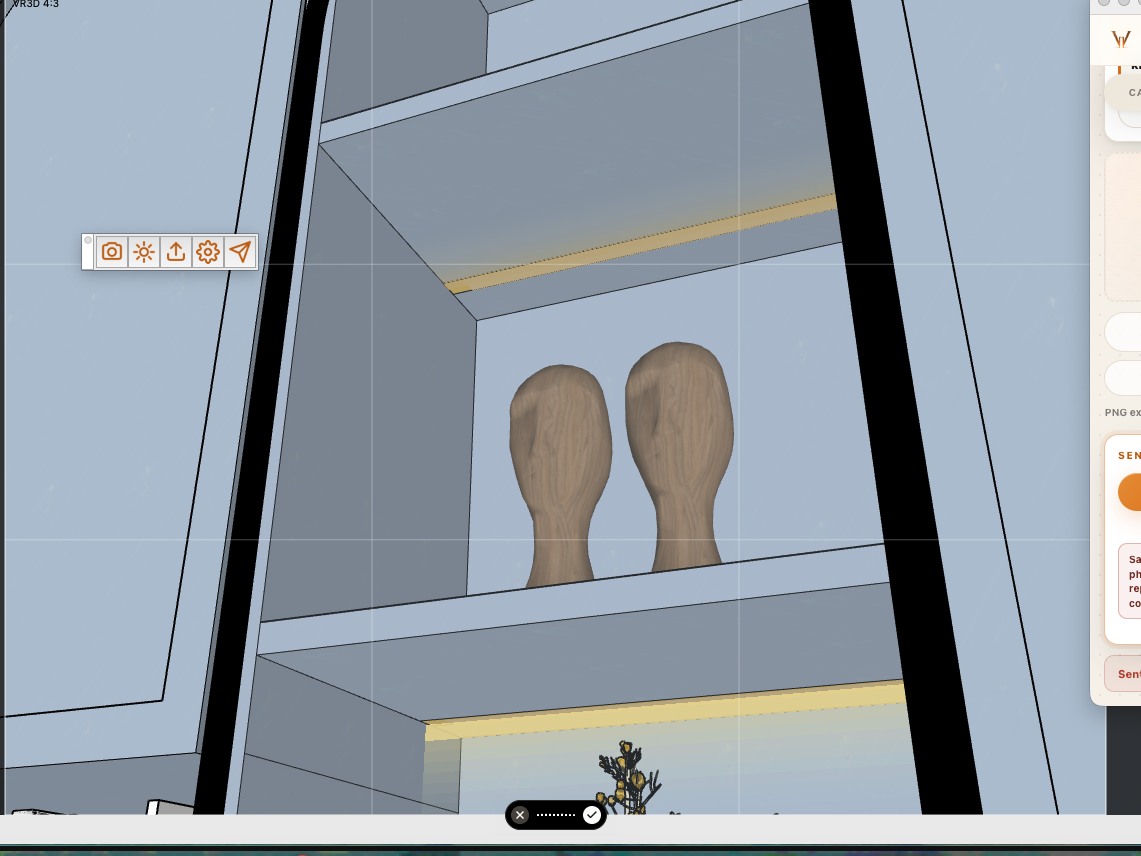
Camera, glow and delivery controls in one panel
The camera tools make small, predictable framing moves. Glow tools turn the team’s chosen marker material into reversible lighting guides. Send Current moves one approved view; Send All moves saved scenes as a batch. The model remains the source of truth while the web app becomes the review and delivery room.
Download the current RBZ and install it through SketchUp’s Extension Manager.
What happens after you press Send
- 1
The scene reaches your private inbox
Vivid groups the captured image with its project and scene name instead of leaving loose screenshots in a chat thread.
- 2
You confirm the scene
Review the camera, visible materials and intended lighting before spending a render credit.
- 3
You create and compare versions
Keep the source next to each result, request focused changes and retain the approved history.
- 4
You deliver the latest views
Download one approved image or package the latest project versions for the client.
The plugin helps AI see the view as a brief, not an invitation to redesign.
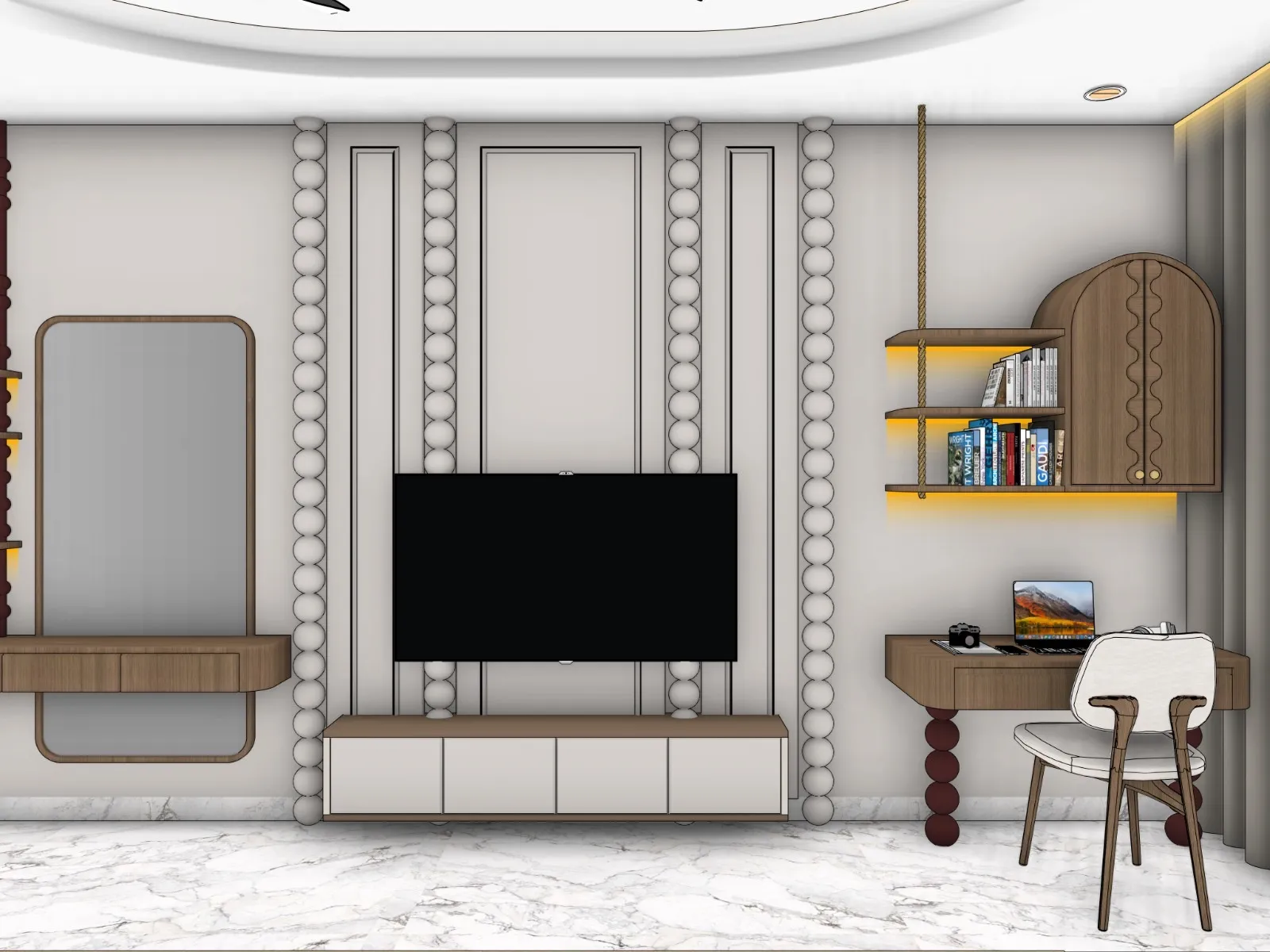
A careless viewport can still produce a careless result. Frame the camera, show the furniture that must remain, use deliberate materials and mark only intended glow locations. The bedroom case study shows the level of source clarity that gives the renderer useful constraints.
Frequently asked questions
Does Vivid Render work inside SketchUp?
Vivid Export is installed as a SketchUp extension. It prepares and sends the current view or saved scenes to the browser-based Vivid workspace, where rendering, review and delivery happen.
Which SketchUp versions are supported?
The current plugin download supports SketchUp 2021 or newer on Windows and macOS.
Does the plugin alter my model permanently?
Camera and export preparation are designed to restore model state. Glow objects created by the plugin are visible, reversible SketchUp objects that the designer controls.
Can I send several scenes at once?
Yes. The plugin can send the current view or a batch of saved scenes into one Vivid project.
Do I still need V-Ray, Enscape or a GPU?
No additional render engine or local GPU is required for Vivid’s cloud rendering workflow.
Turn the view you approved into the image your client understands.
Start with a SketchUp scene. Keep the design decisions. Make the result presentation-ready.
Get the SketchUp plugin